Whitebg

Mobile photo editing

Make a white bg for iphone photos without studio gear

An iPhone photo can have a sharp subject and still be hard to use because the room behind it is distracting. Whitebg helps you plan a clean white background while keeping the object, its edges, and a believable shadow in view.

Review the result before sharing
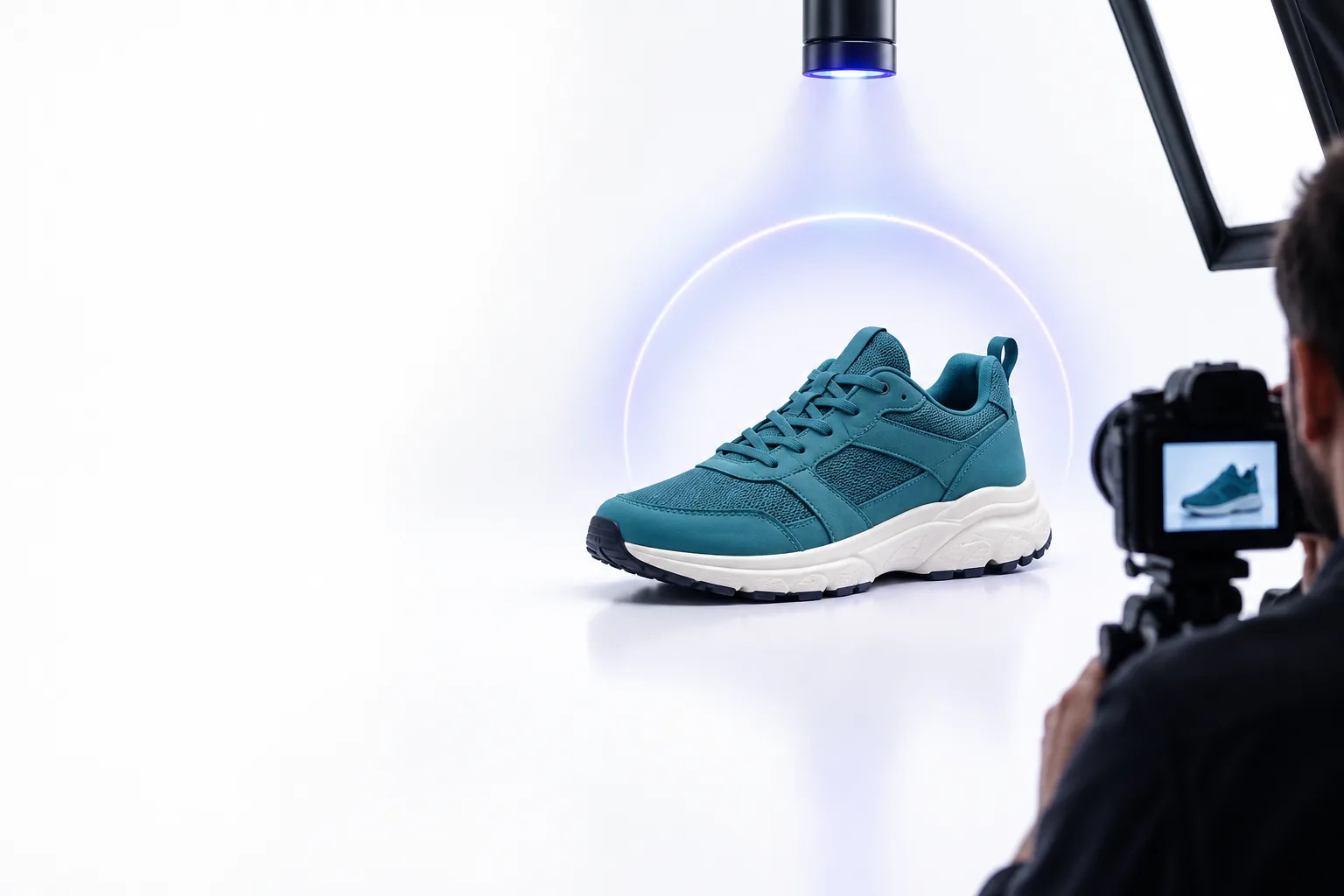
Photo subject presented against a clean white background

Why iPhone photos fight a clean backdrop

A bright screen can hide gray walls, uneven lighting, and rough cutout edges. The right fix depends on whether the problem is the background, the subject, or the file you need.

Three concrete workflows for phone photos

Start with the kind of picture you have, not a one-size-fits-all edit. Each workflow ends with a close inspection on the iPhone screen.

  1. 1

    Product photo: clear the scene

    Choose the sharpest iPhone shot of the item, preferably one with space around its outline. Ask for the table, wall, or surrounding objects to become a white bg, but retain the product’s real color and a restrained contact shadow. Inspect handles, straps, and gaps before saving; those details are where a cutout can look unnatural.

  2. 2

    Portrait: protect hair and skin

    Use a photo with an in-focus face and lighting that does not bury one side in darkness. Replace the setting with a white bg while requesting natural hair edges and unchanged facial features. Zoom in around flyaway hair, glasses, and shoulders. A clean backdrop should not come at the cost of a flattened face or a bright halo.

  3. 3

    Document or object: check the file

    For a small object photographed on an iPhone, straighten and crop the source before changing the backdrop. Request a white bg with enough margin to show the full outline, then open the exported image outside the editor. Confirm that the canvas is actually white rather than transparent or pale gray, and that no important edge was cropped.

What the finished image should show

A useful result is more than a white-looking thumbnail. Open the full image and check these visible limits before relying on it.

Fine edges may need another pass

A white bg can expose missing strands of hair, gaps between fingers, or pale edges on a light-colored product. Automatic separation cannot reliably reconstruct detail that the original iPhone photo never captured.

Workaround

Return to a sharper source photo or refine the outline before exporting the final image.

White does not fix poor lighting

Replacing a room with white will not remove harsh reflections, heavy blur, or color casts already present on the subject. A bright backdrop can make those flaws easier to notice.

Workaround

Retake the photo in even light, without digital zoom, and compare it with the edited result.

The file may not have a white canvas

Some viewers display transparent areas as white. That can make a PNG appear to have a white bg even though another app will show a different color behind it.

Workaround

Open the export in a second viewer or place it over a colored canvas to verify whether white pixels are present.

Compliance notes before you share

Check the image against its intended use

If a listing, application, or publication specifies a background color, dimensions, or permitted edits, follow those requirements rather than judging the photo by appearance alone. A white bg may be visually clean but still fail a rule about shadows, cropping, retouching, or file format. Do not use background editing to hide defects or misrepresent an item. Keep the original iPhone photo so you can compare colors and details, and avoid uploading images that contain private information unless you are comfortable with the tool handling them. When the result is ready, inspect the exported file at full size—not just its preview.

Edit my photo
  • Compare the edit with the original
  • Verify the exported canvas and format
  • Check the rules where the image will appear

iPhone background FAQ

Start with a sharp photo that clearly separates the subject from its surroundings. Replace the background with white, then inspect the full-size result around hair, transparent parts, and narrow gaps. Save the image and reopen the exported file to confirm the background looks right outside the editor.

Yes, provided the finished image still represents the item accurately. Keep its true color, shape, and visible condition, and check the requirements of the place where you plan to post it. A subtle contact shadow can help an object look grounded, but some uses require none.

The source photo may contain uneven light, or the replacement color may be off-white rather than pure white. Screen brightness can also make a faint tint hard to see. Check the exported image in another viewer and compare the canvas with a known white area.

Use the format required by the destination. PNG is useful when you need to preserve transparency, but transparency is not the same as a white canvas; JPEG produces an opaque image. Reopen either file after export to check its background and edges.

It can if the source is small, blurred, or repeatedly saved at lower quality. Begin with the best available iPhone original and avoid enlarging a tiny crop. Examine the final file at full size before sharing it.

Start editing
Start editing