Whitebg

Free workflow

Make a clean image with white background free

A white background free request can help you start without choosing editing settings first. Describe the subject and the clean white result you want, then check the output before using it.

Check the result before using it
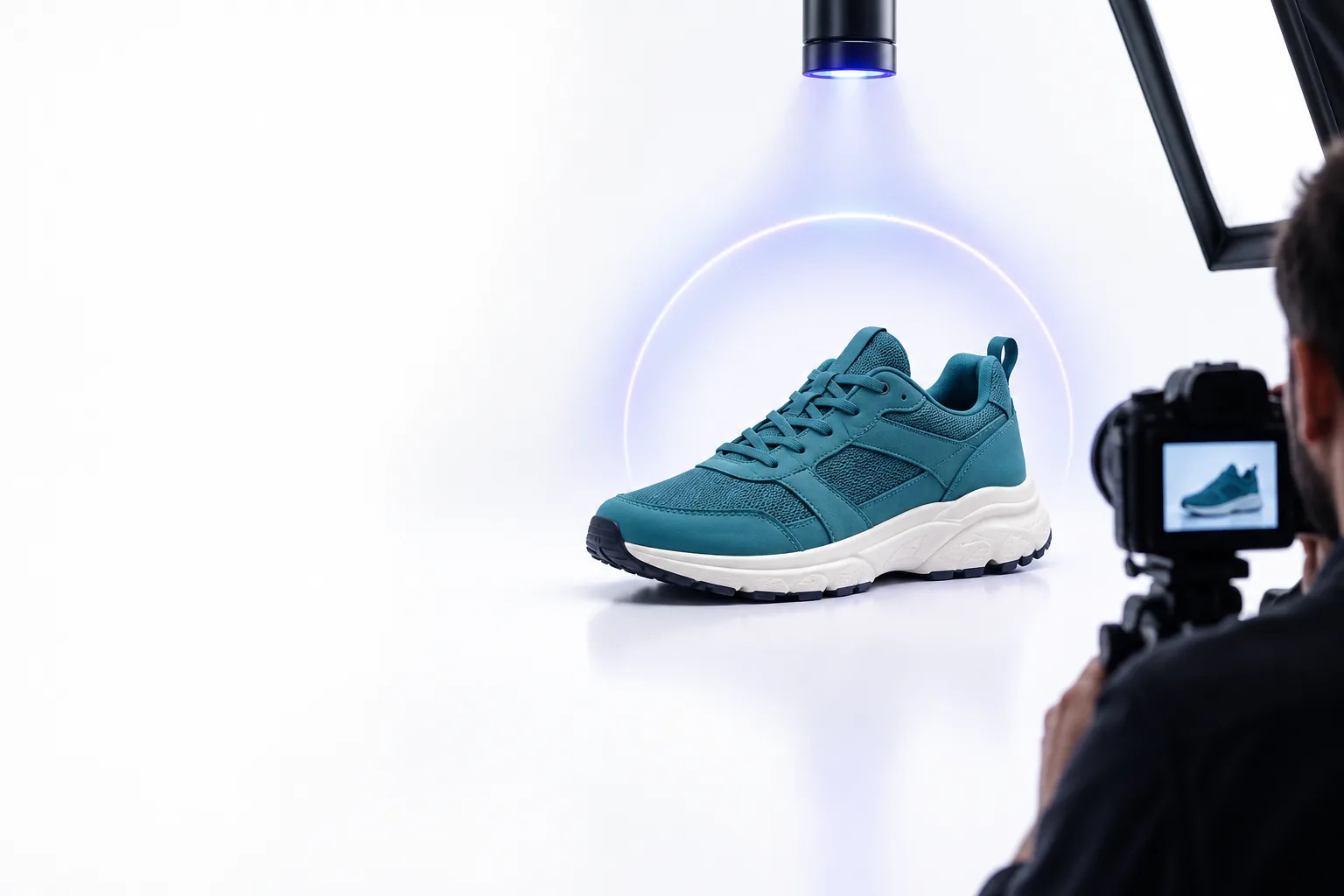
Example image showing a subject against a clean white background

How to start

Begin with one image and a specific instruction. These steps help you make a result you can evaluate rather than assuming every edge will be perfect.

  1. 1

    Choose a clear source

    Use a photo where the subject is visible and not heavily blurred or hidden. Good separation between the subject and its surroundings gives you a better basis for judging the result.

  2. 2

    Describe what stays

    Name the subject and ask to preserve its shape, color, and important details while changing the surroundings to solid white. Mention delicate areas such as hair, glass, or thin straps.

  3. 3

    Inspect the finished image

    Look closely at the outline, shadows, and any white parts of the subject. If something has disappeared or changed, revise the request and compare the new result with the original.

Limits

A free starting point is useful for trying an edit, but it does not replace checking whether the image meets your particular requirements.

Not a guarantee of perfect edges

Fine hair, fur, motion blur, and transparent objects can be difficult to separate cleanly. A convincing image at thumbnail size may still show halos when enlarged.

Workaround

Inspect the subject at full size and try a clearer source photo if the outline looks rough.

Not a product-accuracy check

An edited result may alter a label, texture, color, or small feature. That matters when the image must represent the exact item being shown.

Workaround

Compare identifying details against the source before publishing or sharing.

Not a promise of export specifications

Starting with a white-background request does not establish a particular resolution, file format, or acceptance by an image platform.

Workaround

Check the downloaded file and the destination’s current image requirements separately.

This entry point vs the general one

The white background free entry point starts with a specific visual goal. The general Whitebg entry point leaves more room for deciding what kind of image change to request.

White background free entry
General Whitebg entry

Starting goal

White background free entry

Place a subject against white

General Whitebg entry

Describe the image result you need

First instruction

White background free entry

Name the subject and request solid white

General Whitebg entry

Specify the intended change

Best source

White background free entry

A clearly visible subject

General Whitebg entry

An image suited to the chosen task

Main review

White background free entry

Subject edges and preserved details

General Whitebg entry

Whether the result matches the request

Useful for

White background free entry

A clean product or profile image

General Whitebg entry

A broader range of image ideas

Still required

White background free entry

Check the file against its destination’s rules

General Whitebg entry

Check the output against your intended use

The 3 things only this entry point does

Start with white as the goal

This entry point keeps the task focused: request a white backdrop, say what must remain unchanged, and review the finished outline. If that is the image you need, begin with a specific description rather than a vague request to improve the photo.

Make white image
  • Puts the white backdrop in the initial request
  • Keeps the subject’s details in focus
  • Prompts a close review before use

White background free FAQ

You can start with a white-background request through this entry point. Check the destination’s current terms and the resulting file before relying on it for a project.

Name the subject, ask for a solid white background, and say which details must stay unchanged. If the subject has fine edges or transparent parts, mention those so you know what to inspect afterward.

Not necessarily. A soft, natural shadow can help a product look grounded, so specify whether you want to keep it or remove it.

Possibly, but inspect the item’s color, shape, label, and edges against the source image first. Also check the listing platform’s current image and file requirements; a white backdrop alone does not establish compliance.

Start editing
Start editing